

Prepare the provider account
Review model availability, terms and billing in your provider account. Create a key with only the necessary permissions and separate testing from live use where your tools allow. Never use a key published in a chat or public document.
Add credentials in the right place
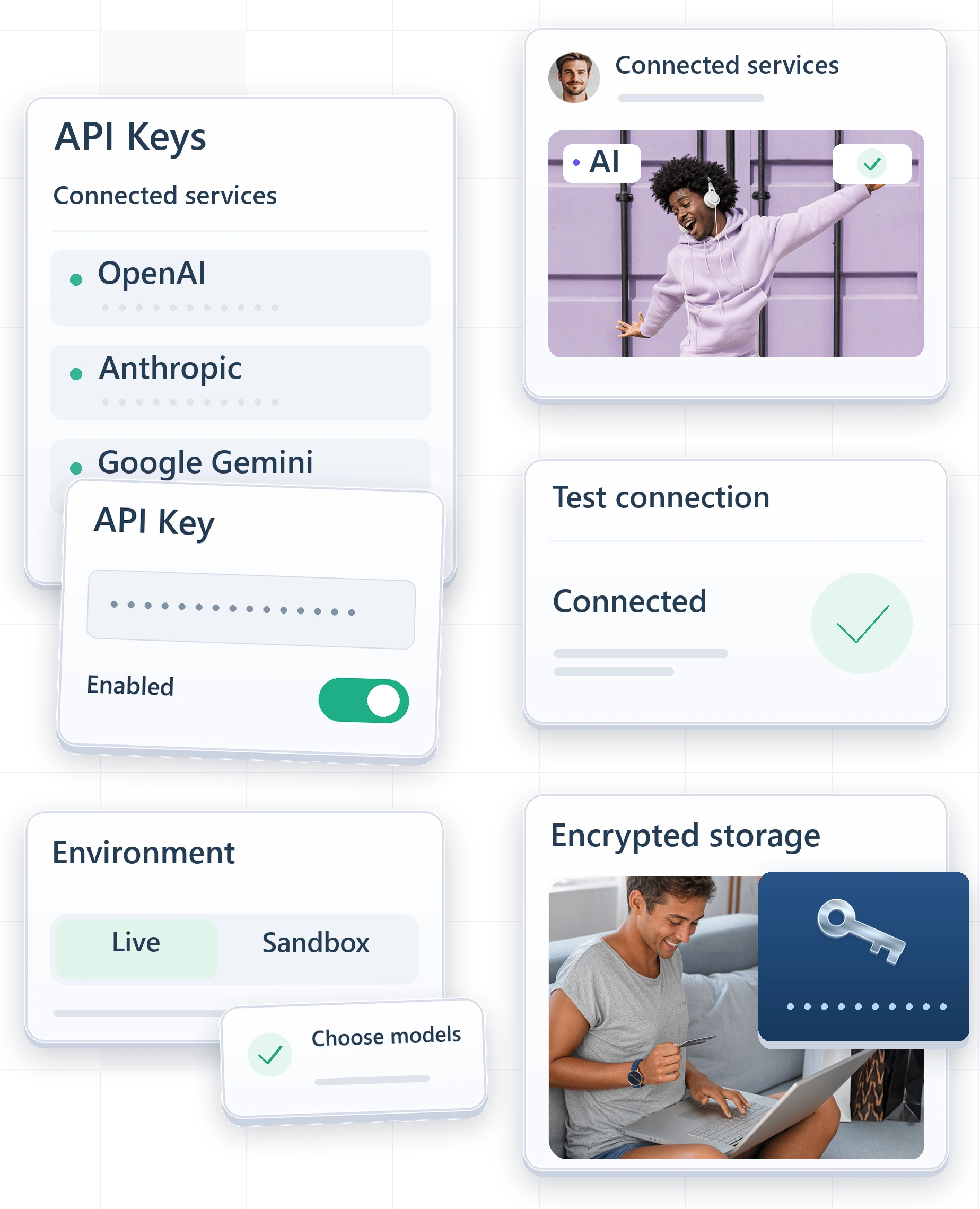
Use the API keys screen in your Auticly account, select the provider and enter the required connection details. Do not send keys through the contact form or support messages. When sharing an error, remove secrets first.
Test both connection and model
A connection test is the first step. Also confirm the chosen model is available to your account and supports the intended use. Check provider permissions and usage limits when a test fails rather than changing agent instructions to solve a connection problem.
Monitor and rotate carefully
After connecting the model to an agent, test sales and handoff cases. Monitor provider usage and available Auticly metrics. When rotating a key, update and test the connection before retiring the old key under a plan that avoids interruption.